
Cartoon Video Editor
2D Animation AI Generator
Create a 2D cartoon from a written prompt. Try bold paper shapes with Classic 2D or a hand-drawn pencil look with Sketch 2D. Start with a sample scene and change the character or action.
Open draft in editorSign in to generate. You’ll see the credit cost before you confirm.
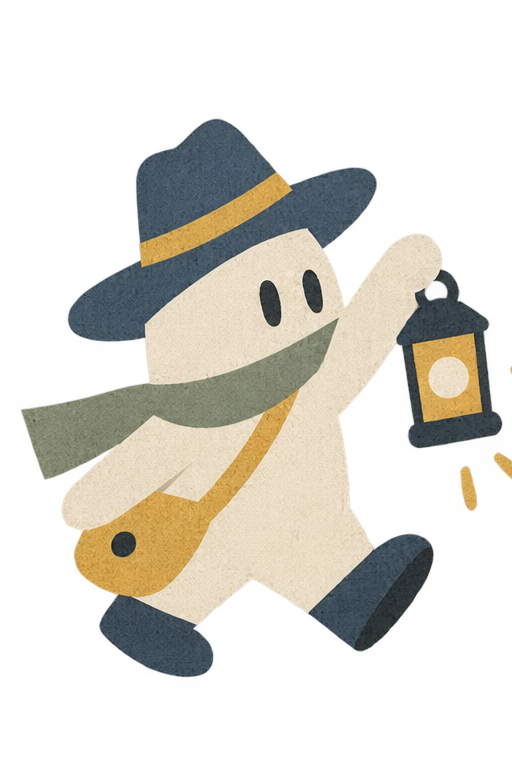
When to use 2D animation
Classic 2D works well for a mascot greeting or a quick visual joke. Bold shapes make the pose easy to spot. Use the rough pencil lines of Sketch 2D for a diary scene or a memory you want to feel hand-drawn.
After You
The lantern keeper steps aside for a snail on a narrow footbridge. Then the rest of the queue arrives.
10 seconds · MiniMax H3
Made in one generation with an opening frame and an ending frame. The prompt refers to those two images.
View production prompts
Video prompt
Use Picture 1 as the exact opening at 0s and Picture 2 as the final frame at 10s.

integrated_multimodal_description: [Shot 1] One fixed slightly elevated wide shot, the same bright matte flat 2D cut-paper cartoon as both frames. Keep the cream mascot with two black oval eyes, slate-blue hat with mustard band, olive scarf, mustard satchel and blue boots. Keep the same creek, same narrow tan plank bridge, same beige sitting rock on the left bank and same coral cottage in the background. Give the mascot lively little weight shifts and distinct footfalls. All snails glide right to left, cream bodies and simple curved eyestalks. The terracotta-shell snail is the only snail at first. Add the mint-shell and ochre-shell snails in that order from the far right when specified.

0–1.1s: Both start in motion. The mascot takes two quick steps to the right. The terracotta snail slides toward it from the right. Both brake as their paths meet near the left half of the bridge.
1.1–3s: Show the comic misunderstanding with two brisk matching moves. The mascot makes a tiny side-step toward the front edge to let the snail pass, but the snail shifts toward that same edge at the same instant. Their eyes meet for a fraction of a beat. Both immediately move back toward the far edge together and again find themselves face to face. They stay on the bridge. Keep the matching moves clearly toward and away from the camera, not straight forward.
3–5.2s: The mascot quickly steps back left onto the low beige rock just beside the entrance, shifting off the route. The first snail starts gliding past the mascot toward the left. The mascot lifts its boot and starts to step back onto the bridge.
5.2–7.6s: The second snail with a muted mint shell glides in from the right, then a third slightly smaller ochre-shell snail starts to follow at the same right entrance. The mascot sees the queue, pulls the lifted boot back, and lowers its shoulders.
7.6–10s: The mascot sits on the rock in one short motion and lets the blue boots dangle. The three snails continue toward the left in single file, still moving into Picture 2. Give the mascot one small boot swing as it settles and watches them pass. Preserve exactly the three separated snails in the last shot, clear screen direction and the unchanging background.

overall_soundscape: A light shallow creek, two pairs of quick dry plank taps for the mirrored sidesteps, a little landing on the stone and a soft scarf rustle. Wordless.
non_diegetic_music: None.
Pick a look that makes the action easy to read
Classic 2D for clear shapes
A triangular coat and a round lantern are easy to recognize, even in a tiny frame. If the coat blends into the snow, darken it or lighten the snow until you can see the outline.
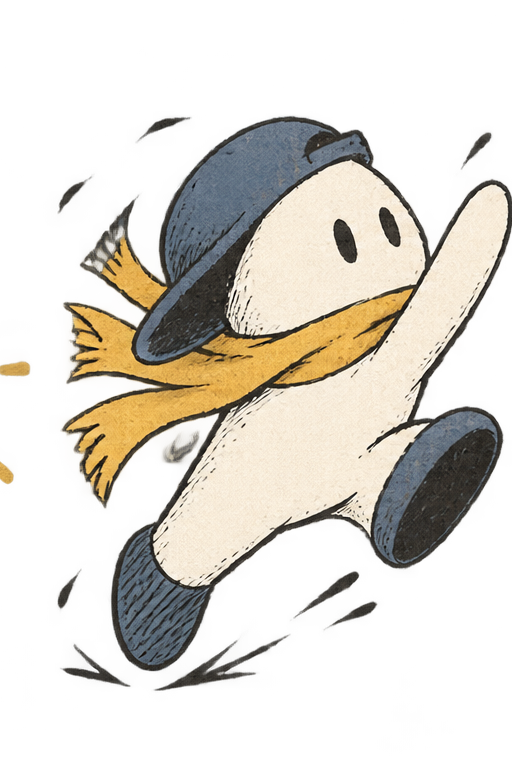
Sketch 2D for movement in the lines
Loose charcoal lines around the traveler’s shoulders make the hill feel windy. Leave the sky mostly bare and save the bright color for the scarf so you can see which way it blows.
Open Sketch 2D draft in editorWrite a one-shot 2D animation prompt
In this shot, the keeper raises the lantern and lights up a post. Give the viewer time to see where that light lands.
A paper-cut lantern keeper in a blue hat steps onto a snowy bridge and raises a yellow lantern. Warm light falls across the nearest bridge post. Keep the shot wide, with bold outlines and a pale blue background.
Give the character a readable pose
Describe the first and last pose. The keeper walks onto the bridge with the lantern at their side, then lifts it above the rail. Leave sky behind the raised arm so its outline is easy to see.
Give the eye one place to go
Save the brightest yellow for the lantern and the light it casts on the post. Use muted colors for the snow, rail and trees.
Tell the camera what to hold
Keep the keeper and the post in the same frame. Once the light reaches the post, pause on that view before cutting.
Keep the drawing consistent when the camera cuts
Carry the same design into the next shot
Write down the hat color, the coat shape and the lantern design. Use those details in both shots. In the close-up you can add something small, like the loop on top of the lantern.
Match the action across the edit
If the lantern ends up in the keeper’s right hand above the railing, start the next shot there. Keep the keeper moving the same way across the screen until they turn. Play the shots back to back to spot any sudden jumps.
Fix the clutter before changing the style
If the movement gets lost, clear some space behind it or take out an extra gesture. To compare two styles, leave the action and camera angle the same so you can see what the drawing changes.